
The Ultimate Guide to Configuring Claude Code (Beyond the Defaults) 2026 Update
Why the default setup feels underwhelming and how to fix it

After reading this guide, you’ll know how to extend and configure Claude Code so it writes code the way you would. Aligned with your project, your standards, and your taste.
Context Management
Before we extend Claude’s capabilities, we need to understand its context window. Think of the context window like an LLM’s working memory. It’s everything the model can “see” at once.
That includes:
your current prompt
previous messages in the conversation
system rules
files you pasted in
code, diffs, logs, docs
tool results (git output, test logs, etc.)
If it’s inside the window, the model can reason about it.
If it’s outside, it effectively doesn’t exist.
You can look up your current session’s context window with /context directly in Claude Code.
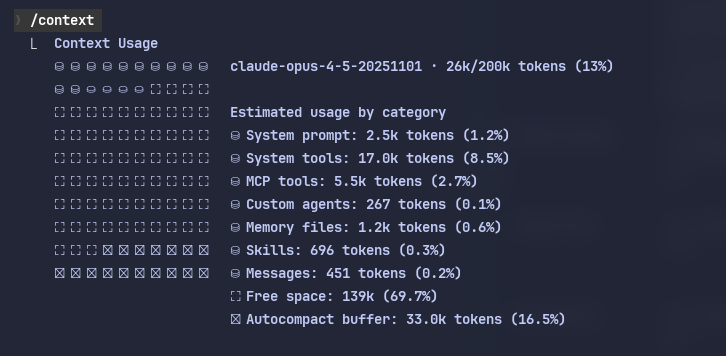
Coding agents don’t just chat. They juggle large codebases, multiple files, instructions, tool outputs, and intermediate plans.
All of that competes for space in the same window.
Once the window fills up:
older context gets dropped
instructions get forgotten
decisions lose their rationale
bugs become harder to debug
behavior starts to feel “random”
That’s why we have to be smart about what we put in the context window.
CLAUDE.md
Claude Code does not persist memory between coding sessions. It does not automatically learn or improve from previous sessions.
This is where CLAUDE.md comes into play. It is a simple markdown file that sits in your project’s root directory (this is the default, there are other locations - see table below).
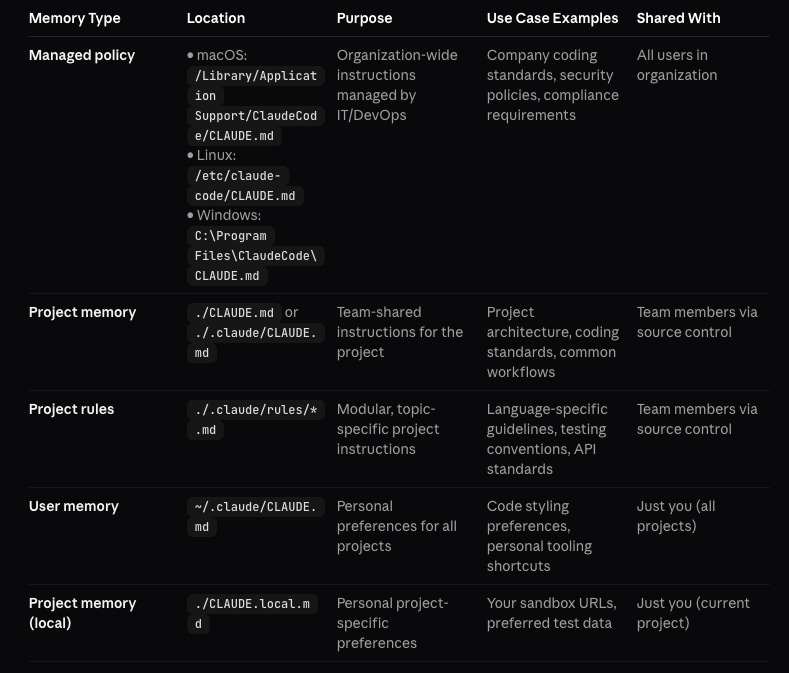
Your CLAUDE.md is loaded into the context for every session. Use it tell Claude about:
Project conventions
Tech Stack
Project Structure
Commands
Key Patterns
Coding Best Practices
You should try to keep it short and high-signal. 50-150 lines is ideal. Under 500 tokens. You can use /init to let Claude Code help you generate a CLAUDE.md.
Skills
Unlike CLAUDE.md, which is static context loaded every time, Skills are reusable capabilities the agent pulls in only when needed.
They follow the Agent Skills standard. Skills can enable:
Domain expertise: Package specialized knowledge into reusable instructions, from legal review processes to data analysis pipelines.
New capabilities: Give agents new capabilities (e.g. creating presentations, building MCP servers, analyzing datasets).
Repeatable workflows: Turn multi-step tasks into consistent and auditable workflows.
Interoperability: Reuse the same skill across different skills-compatible agent products.
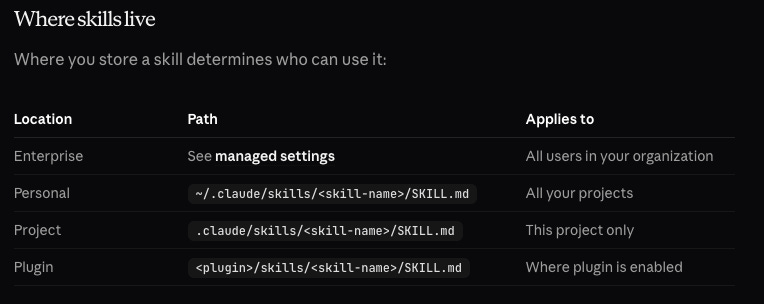
Broadly speaking skills can be separated into two categories.
Reference skills – give Claude information to use during the session
"use AP style for all writing."
Action skills – tell Claude to do something
"When asked to create a chart, use Python and save it as a PNG."
Skills are invoked two ways:
By you – type /skill-name (optionally with arguments like /fix-issue 123)
By Claude – loaded automatically when the task matches the skill’s description
How Claude decides: Skill descriptions are loaded into context at session start. When you ask something, Claude matches your request against these descriptions and loads relevant skills.
Control options:
disable-model-invocation: true – only you can invoke it (for things like /deploy)
user-invocable: false – only Claude can invoke it (for background knowledge)
Subagents
Subagents are isolated workers that run tasks in their own context window.
Think of them as specialists you delegate to. They do their work separately, then report back with a summary. Your main conversation only sees the result. Not the dozens of files they read or searches they ran.
Why this matters: Remember how context fills up? Subagents solve this. The heavy lifting happens in isolation, so your main session stays clean.
When to use subagents:
Tasks that read lots of files but only need key findings
Parallel work (run multiple investigations at once)
Specialized workers (security review, performance audit)
When your context window is getting full
How they work:
Fresh context (no conversation history from your session)
Can preload specific skills
Return a summary to your main conversation
Your session only “pays” for the summary, not the work
Example: You ask Claude to research how authentication works across your codebase. A subagent reads 40 files, traces the flow, and returns a 200-word summary. Your main context gains 200 words of insight, not 40 files of code.
Skills + Subagents: Skills can run in subagent mode by adding context: fork to their front matter. This gives you reusable workflows that don’t bloat your main session.
Hooks
Hooks are shell commands that run automatically at specific points in Claude’s workflow. Unlike skills (which Claude decides when to use), hooks are deterministic—they fire every time their trigger condition is met.
Why hooks exist: Sometimes you don’t want to ask Claude to format code or run linting. You want it to happen. Every time. No exceptions.
When to use hooks:
Auto-format files after edits (run Prettier on .ts files, gofmt on .go)
Block modifications to sensitive files (.env, production configs)
Custom notifications when Claude needs input
Logging commands for compliance/debugging
Hook events:
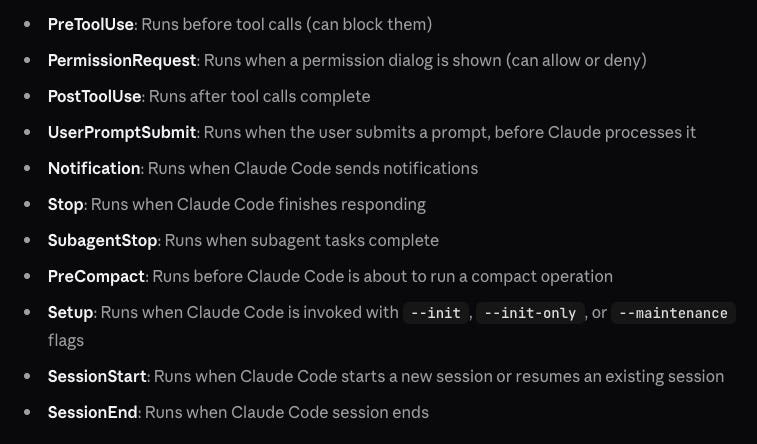
Example: Auto-format TypeScript after edits
{
  "hooks": {
    "PostToolUse": [{
      "matcher": "Edit|Write",
      "hooks": [{
        "type": "command",
        "command": "file=$(jq -r '.tool_input.file_path'); [[ $file == *.ts ]] && npx prettier --write \"$file\""
      }]
    }]
  }
}
Example: Block edits to .env files
{
  "hooks": {
    "PreToolUse": [{
      "matcher": "Edit|Write",
      "hooks": [{
        "type": "command",
        "command": "jq -r '.tool_input.file_path' | grep -q '\\.env' && exit 2 || exit 0"
      }]
    }]
  }
}
Configure hooks with /hooks or edit ~/.claude/settings.json directly.
MCP
MCP connects Claude to external tools and services. It’s an open standard for AI-tool integrations.
What MCP enables:
Query databases directly
Post to Slack, create GitHub PRs, file Jira tickets
Access APIs (Stripe, Sentry, Notion, etc.)
Control browsers, run Playwright tests
Installing MCP servers:
# Remote HTTP server (most common)
claude mcp add --transport http notion https://mcp.notion.com/mcp

# Local stdio server (runs on your machine)
claude mcp add --transport stdio airtable -- npx -y airtable-mcp-server
Managing MCP servers:
claude mcp list          # see all servers
claude mcp remove github # remove one
/mcp                     # check status in Claude Code
MCP is a deep topic. Dozens of servers, authentication flows, scoping options. Worth exploring on its own if you're serious about integrations.
Plugins
Plugins bundle everything above into shareable packages.
A single plugin can include:
Skills (commands and reference material)
Subagents (specialized workers)
Hooks (automation scripts)
MCP servers (external integrations)
Why plugins exist: You’ve built a great /deploy skill, some formatting hooks, and configured an MCP server for your database. Instead of teammates recreating all that, package it as a plugin. One install, everything works.
Installing plugins:
/plugin                              # browse available plugins
/plugin install plugin-name@marketplace
Plugin scopes:
User – available across all your projects
Project – shared with collaborators (commits to repo)
Local – just you, just this project
Anthropic maintains an official marketplace with LSP plugins (code intelligence), integrations (GitHub, Slack, Sentry), and workflow tools. You can also create your own marketplaces for internal distribution.
Want more?
I share my own Claude Code skills, workflows, and how I actually use AI in my day-to-day work in my weekly newsletter. Real examples, not theory. Subscribe if you want to go deeper.